
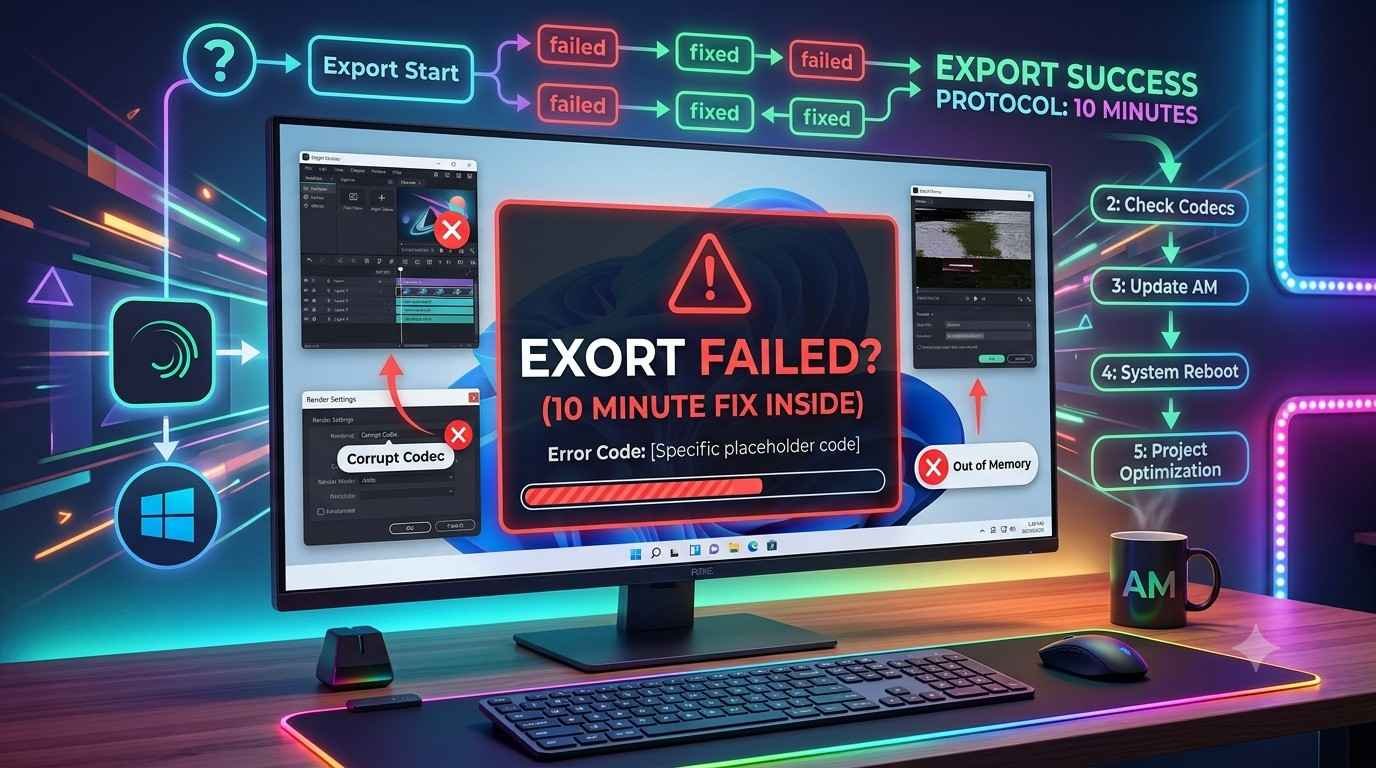
Then you hit Export.
And Alight Motion just… doesn’t.
Maybe it says Export failed. Maybe it gets stuck on Rendering. Maybe it “exports” but you get a broken file, a black screen, no audio, or the app just closes like it never met you.
Good news though. Most Alight Motion export failures come from the same handful of issues. And you can usually fix it fast. Like, within 10 minutes.
This is the exact checklist I use.

What “Export Failed” usually means (in plain language)
Alight Motion exports by doing a heavy render in the background. That render can fail because:
- your phone runs out of RAM
- your storage is too low for the temp render files
- the project has an effect or asset that’s glitching
- the export settings are too aggressive for your device
- the app is outdated or corrupted
- you’re exporting to a format/container your device hates today for some reason
So the fix is basically: reduce strain, remove the one thing breaking the render, and make sure the app has room and permission to finish.
The 10 minute fix checklist (do these in order)
1) Force close Alight Motion, then restart your phone (2 minutes)
Yeah I know, boring. But export failures often happen after you’ve been editing for a while and the app is holding onto memory.
Do this:
- Close Alight Motion fully (force stop it).
- Restart the phone.
- Open Alight Motion and export again immediately (before opening 12 other apps).
If it exports now, you’re done. If not, keep going.
2) Check free storage (you want more than you think) (1 minute)
Rendering creates temporary files. Even if the final export is 200MB, the temporary render can need way more.
Rule of thumb:
- Try to have at least 3GB free, ideally 5GB+ if you’re exporting 1080p or higher.
Quick cleanup ideas:
- delete old screen recordings
- clear your Downloads folder
- move big videos to Google Drive
- empty your trash (some phones keep “deleted” stuff)
Then try exporting again.

3) Export with “safe” settings first (2 minutes)
If you’re exporting 60fps, 4K, high bitrate, with motion blur and a stack of effects… you’re basically daring your phone to fail.
So do a test export with safe settings. You can always export high quality later.
Try this export combo:
- Resolution: 720p
- FPS: 30
- Bitrate/Quality: Medium
- Format: MP4 (H.264) if available
- Disable: any “high quality” toggles, HDR, or fancy stuff
If 720p works, the project isn’t broken. It’s just too heavy at your current settings. Then you can slowly raise settings until it breaks again, and you’ll find the limit.
4) Duplicate the project and export the duplicate (1 minute)
This sounds silly but it works more than it should.
In Alight Motion:
- Long press your project
- Duplicate
- Open the duplicate
- Export
Sometimes the original project file is a little corrupted or just “stuck”.
5) Clear cache (not data yet) (1 minute)
If you’re on Android, cache can get messy, especially after updates.
Android:
- Settings → Apps → Alight Motion → Storage
- Tap Clear Cache
- Reopen and export
Do not clear data yet. Not until you’ve tried the other stuff and you’re sure your projects are backed up.
6) Find the “problem layer” by exporting in chunks (3 to 6 minutes)
If exports still fail, there’s a decent chance one layer is crashing the render. Common culprits:
- imported video with weird encoding
- a large PNG that’s too big (like 8000×8000)
- certain third-party fonts
- heavy blur + motion blur + glow combos
- particle effects stacked like a sandwich
Here’s the fast way to isolate it.
Method:
- Duplicate the project again (always work on a copy).
- Turn off half the layers (hide them).
- Export.
- If it works: the bad layer is in the half you turned off.
- If it fails: the bad layer is in the half still enabled.
Repeat like a binary search until you find the exact layer causing the crash.
Once you find it, you have options:
- replace that asset (reimport the video/image)
- pre-render it (export just that element alone, then import the exported clip back in)
- reduce effect intensity
- reduce resolution of the asset
This chunk method is annoying, but it’s the quickest way to stop guessing.

Fast fixes for specific situations (pick the one that matches your problem)
If Alight Motion gets stuck on “Rendering…”
Try these:
- export at 30fps
- turn off Motion Blur
- reduce blur/glow strength
- close every other app (especially games, TikTok, Chrome)
- switch to airplane mode (sometimes background sync interrupts, weirdly)
- export while the phone is charging (some phones throttle performance on low battery)
Also, check your phone temperature. If it’s hot, it will throttle and can stall rendering. Give it 2 minutes to cool.
If the export finishes but the video is black
This usually points to:
- a blending mode/effect that doesn’t render correctly
- a corrupted imported clip
- a codec mismatch
Fixes:
- Change export format to MP4 (H.264).
- Turn off layers using unusual blend modes, then re-export.
- Replace any imported clips. Re-download them, or convert them first (more on that below).
If there’s no audio in the exported video
Common reasons:
- audio track muted in timeline
- audio track is too long/short and gets cut
- phone’s media encoder bugging out
- you’re exporting as a format that doesn’t include audio properly
Fixes:
- Ensure the audio layer isn’t muted and volume is up.
- Export again at 30fps, MP4.
- If the audio was imported from a screen recording or a weird source, convert it to a clean MP3 or AAC first, then reimport.
If Alight Motion crashes during export
This is usually memory.
Do this:
- Export at 720p, 30fps.
- Shorten the project (even temporarily) and export a 5 second section.
- If it works, export the whole video in parts, then merge later.
If you absolutely need 1080p:
- remove motion blur
- reduce shadows/glows
- pre-render complex sections
The most common “hidden” cause: messed up source video encoding
This one wastes hours because your project looks fine in preview, but export fails anyway.
If you imported a clip from:
- TikTok downloads
- Instagram reels
- YouTube downloads
- random Telegram forwards
- screen recordings
- “CapCut templates” packs
There’s a chance it’s encoded in a way Alight Motion doesn’t like.
Quick fix: convert the clip before importing
If you can, convert to:
- MP4
- H.264 video codec
- AAC audio
- Constant frame rate if possible (some clips are variable frame rate and break exports)
If you don’t want to deal with advanced tools, the simple path is:
- Use any reliable video converter app or an online converter
- Reimport the converted file into Alight Motion
- Replace the old clip in your timeline
Then export again.
Exporting in parts (the “I need this out today” method)
If you’re on a weaker phone or your project is huge, exporting in parts can save you. It’s not elegant, but it’s real life.
How:
- Export from 0:00 to 0:10
- Then 0:10 to 0:20
- And so on
Then merge the clips using:
- your phone’s gallery editor (sometimes works)
- CapCut
- VN
- any simple joiner tool
If your export fails at 100 percent near the end, exporting in parts is often the only thing that stops you from throwing the phone.
Settings that tend to trigger export failure (avoid these first)
Not saying these are “bad”, just that they’re common troublemakers on mid range phones:
- 60fps on heavy motion projects
- 1440p or 4K exports
- high bitrate with long duration
- motion blur on everything
- stacking: blur + glow + shadow + grain + chromatic aberration
- massive images (like super high-res PNGs)
- too many vector layers with complex keyframes
If you want the fancy look, you can still get it, you just do it strategically. Pre-render the heavy section, bring it back in as a video layer, keep going.
Update Alight Motion (or roll back, if an update broke you)
If you haven’t updated in a while, update.
If you updated yesterday and exports started failing today… yeah.
- Check Play Store/App Store for a newer patch.
- If none exists, consider rolling back to a stable version (Android only, and only from trusted sources). Or wait it out if you can.
I can’t tell you the number of times export bugs are just version-specific.
Permissions check (especially on Android 11+)
Sometimes exports fail because Alight Motion can’t write to storage where it thinks it can.
Try:
- Settings → Apps → Alight Motion → Permissions
- Allow Photos/Video/Files access as needed
Also try exporting to a different location if the app offers it.
Last resort (but it works): backup projects, then reinstall
If everything fails and you’re stuck, reinstall can clear deeper corruption.
Before you do anything destructive:
- make sure your projects are backed up inside Alight Motion (cloud/backup options if you use them)
- export any project files if possible
Then:
- uninstall Alight Motion
- restart phone
- reinstall
- open your project again
- export with safe settings first
Yes it’s annoying. But it often fixes the mysterious cases.

A quick “do this first” cheat sheet
If you just want the fastest path, do this:
- Restart phone.
- Free up 3 to 5GB storage.
- Export 720p, 30fps, medium quality, MP4.
- If it fails, duplicate project and export the duplicate.
- Clear cache.
- Isolate the bad layer by exporting with half layers disabled.
- Replace suspicious imported clips by converting them to MP4 H.264 first.
That’s basically the whole game.
Why your friend’s phone exports fine and yours doesn’t (yep, it’s normal)
Alight Motion performance depends a lot on:
- RAM (4GB vs 8GB is a big deal)
- chipset
- free storage
- thermal throttling
- Android version quirks
- background apps
So if someone tells you “it exports fine for me” that doesn’t mean your project is wrong. It just means their phone is handling the render pipeline better.
Wrap up
Alight Motion export failed errors feel random, but they’re usually not. It’s almost always storage, memory, export settings, or one corrupted asset quietly poisoning the whole render.
If you do the safe export test and the “export in chunks” trick, you can get a finished video out even on a weaker device. Not pretty. But done.
If you tell me what happens on your screen when export fails (stuck at a percentage, instant error, crash, black video, no audio) and your export settings (resolution and fps), I can point you to the fastest fix.
FAQs (Frequently Asked Questions)
Why does Alight Motion show an “Export failed” message or get stuck during rendering?
Alight Motion’s export failures usually happen because your phone runs out of RAM, storage is too low for temporary render files, there’s a glitchy effect or asset in the project, export settings are too demanding for your device, the app is outdated or corrupted, or you’re exporting to an unsupported format. Essentially, the app can’t complete the heavy background render due to these issues.
What is the quickest way to fix Alight Motion export failures?
The fastest fix checklist involves: 1) Force closing Alight Motion and restarting your phone; 2) Ensuring you have at least 3GB free storage (ideally 5GB+ for 1080p exports); 3) Exporting with safe settings like 720p resolution, 30fps, medium quality, and MP4 format; 4) Duplicating your project and exporting the duplicate; 5) Clearing the app cache (on Android); and 6) Finding any problem layers by exporting parts of your project incrementally. This process usually takes about 10 minutes.
How much free storage do I need on my phone to successfully export videos from Alight Motion?
You should aim to have at least 3GB of free storage space available on your device before exporting. For higher quality exports like 1080p or above, having over 5GB free is ideal because rendering creates large temporary files that require ample space.
What are ‘safe’ export settings in Alight Motion to avoid export failures?
Safe export settings include using a resolution of 720p, frame rate of 30fps, medium bitrate/quality, exporting in MP4 (H.264) format if available, and disabling high-quality toggles such as HDR or motion blur. These settings reduce strain on your device and improve chances of a successful export.
How can I identify if a specific layer in my project is causing Alight Motion to fail during export?
Use the ‘export in chunks’ method: duplicate your project, then hide half the layers and try exporting. If it succeeds, the problematic layer is among the hidden ones; if it fails, it’s among the visible ones. Repeat this binary search approach by halving layers until you find the exact layer causing crashes. Then you can replace or simplify that asset to fix the issue.
Should I clear Alight Motion data if exports keep failing?
Start by clearing only the app cache on Android devices via Settings → Apps → Alight Motion → Storage → Clear Cache. Do not clear data unless you’ve backed up all projects because clearing data deletes all saved work and settings. Try other fixes first before considering data clearance.