If you have ever tried to export a smooth 60fps edit on your phone and watched it turn into a stuttery mess. Or Alight Motion just straight up closes mid project. Yeah. That is usually not “Alight Motion being buggy”.
Most of the time, it is your device running right on the edge of what the app can handle.
And the tricky part is this.
The Play Store and App Store requirements are often way too vague. They tell you the minimum to install. Not the minimum to actually edit without wanting to throw your phone.
So this guide breaks it down the practical way for 2026.
Minimum requirements vs recommended, Android vs iPhone vs iPad, what actually matters (RAM, chipset, storage), and a couple of easy checks before you waste time downloading a bunch of packs and fonts.
For More Detail about Alight Motion : Visit Home Page
What Alight Motion actually needs in 2026 (the simple truth)
Alight Motion is not a basic “add a filter and post” app anymore. Even casual edits now involve:
- Multiple layers (video, text, shapes, effects)
- Keyframes and motion blur
- Blend modes, color grading, sharpening
- 1080p or 4K footage from modern cameras
- Exports at 30fps or 60fps
All of that hits your device in three main places:
- CPU and GPU (chipset)
- RAM (how many layers and effects you can stack before it chokes)
- Storage and speed (exporting, caching, decoding footage)
So when we say “minimum requirements”, we have to be honest about what minimum means.
Minimum to open the app and do a tiny edit. Sure. Minimum to do TikTok style edits, transitions, motion blur, 60fps export. Different story.
Minimum requirements (2026) at a glance
Here is the version most people want. The quick table.
Note: These are practical minimums for 2026 usage. Not just “it installs”.
| Platform | Minimum to run | Minimum to edit comfortably | Recommended for heavy projects |
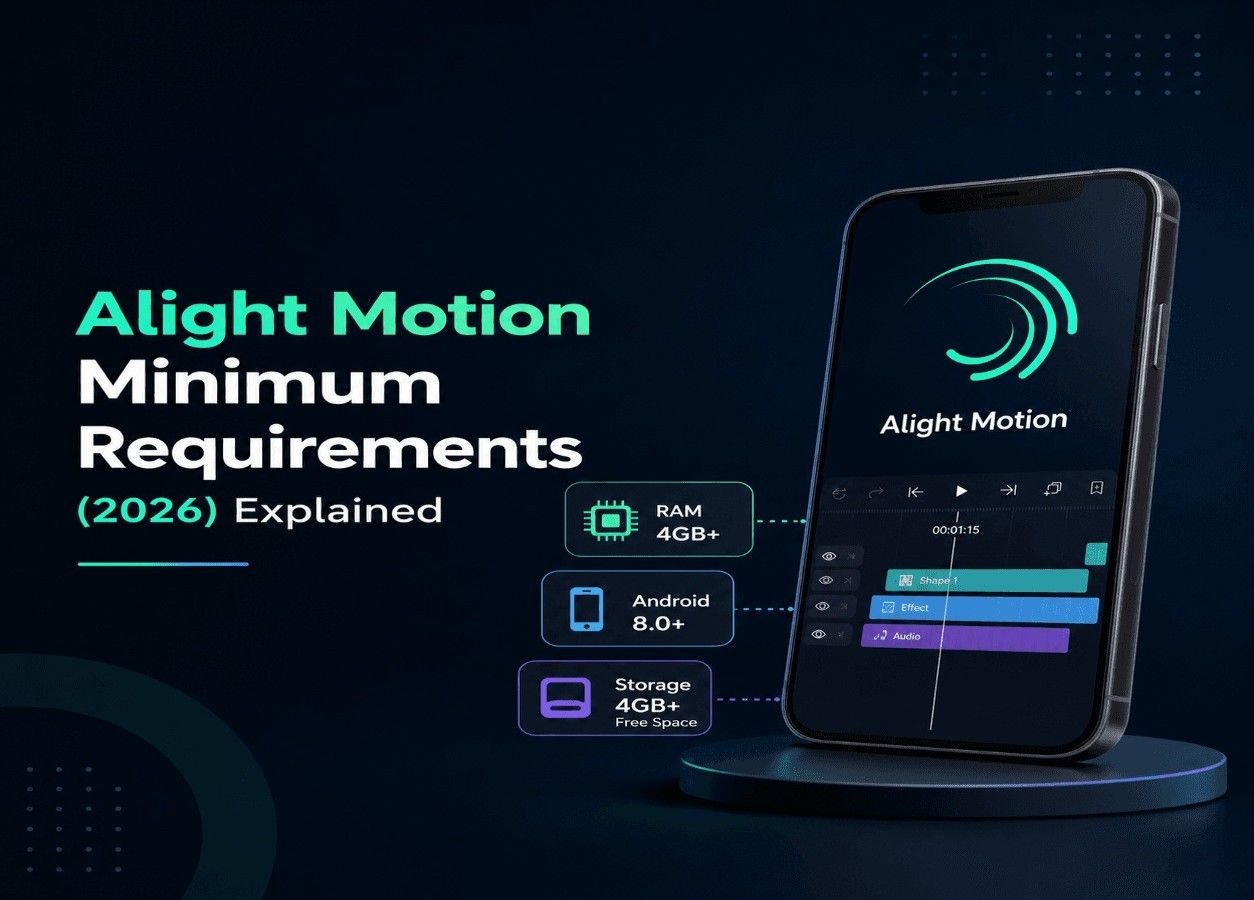
| Android | Android 8.0+, 3GB RAM | Android 10+, 4GB RAM, decent mid range chip | Android 12+, 6GB to 8GB RAM, strong GPU |
| iPhone | iOS 14+, A10 chip | iOS 16+, 3GB+ RAM class devices | iOS 17+, A14+ devices |
| iPad | iPadOS 14+ | iPadOS 16+ | iPadOS 17+, M1 or newer |
And yeah, RAM on iPhone does not work the same way as Android, but it still matters in real usage. Especially with big compositions.
Alight Motion minimum requirements for Android (2026)
1. Android OS version
Bare minimum: Android 8.0 (Oreo)
Better minimum: Android 10
Recommended: Android 12 or newer
If you are on Android 8 or 9, you can often install Alight Motion and do basic stuff. But a lot of the “why does it lag” complaints come from older OS versions plus weaker chipsets.
Also, newer Android versions tend to handle memory management and background rendering a bit better. Not magic. But noticeable.
2. RAM
Bare minimum: 3GB RAM
Comfortable: 4GB RAM
Recommended: 6GB or more
Here is the messy real world bit.
- 3GB RAM means you can do simple edits. A few layers. Minimal effects. Short timelines.
- 4GB is where it starts to feel usable for typical edits.
- 6GB to 8GB is where motion blur, glow stacks, and longer timelines stop being painful.
If you love effects like blur, shake, chromatic aberration, glow, and you stack them. Get more RAM. It is not optional.
3. CPU and GPU (chipset)
This is the part people ignore, then wonder why a “6GB RAM” phone still performs badly.
A budget phone with 6GB RAM can still have a weak GPU. Alight Motion uses GPU acceleration in a lot of rendering tasks. Especially effects and previews.
Bare minimum chipset tier (2026):
- Snapdragon 665 / 670 level
- Helio G80 tier
- Exynos mid range from 2019-ish
Comfortable chipset tier:
- Snapdragon 720G, 732G, 750G
- Dimensity 800 series
- Exynos 1280-ish range
Recommended for heavy editing:
- Snapdragon 870, 888, 8 Gen 1, 8 Gen 2, 8 Gen 3
- Dimensity 9000 and up
Not saying you need a flagship. Just saying if you want smooth previews and faster exports, the GPU tier matters more than people think.
4. Storage (and why “free space” is not enough)
Bare minimum free space: 1.5GB to install and cache basics
Comfortable: 5GB to 10GB free
Recommended: 15GB+ free if you work with lots of footage
Because Alight Motion does not only store the app. It stores cache files, previews, imported media references, exports.
If your phone storage is nearly full, exports fail, previews lag, and the app may crash when it cannot write temporary render files.
Also, storage speed matters. UFS storage is faster than older eMMC. Two phones can both have “128GB” but feel completely different.
Alight Motion minimum requirements for iPhone (2026)
1. iOS version
Bare minimum: iOS 14
Comfortable: iOS 16
Recommended: iOS 17+
If you are stuck on iOS 14 or 15, you can still run Alight Motion, but you will feel it with heavier timelines. Mostly during export.
2. iPhone models (practical tiers)
This is more useful than listing chips.
Bare minimum iPhones (basic edits only):
- iPhone 7 / 7 Plus
- iPhone 8
- iPhone X
You can run the app. You can make edits. But do not expect buttery smooth motion blur previews at 60fps. You will end up lowering preview quality a lot.
Comfortable iPhones (most users are fine here):
- iPhone XR
- iPhone 11 / 11 Pro
- iPhone SE (2020) for lighter stuff
Recommended iPhones (heavy projects, longer timelines):
- iPhone 12 and newer
- iPhone 13, 14, 15, 16 series especially for fast exports
Also, if you shoot in 4K HDR and import directly. Newer iPhones handle decoding and color processing better. Less weird lag.
Alight Motion minimum requirements for iPad (2026)
iPads are interesting because you get a bigger screen. Great for editing. But some base iPads still have limited RAM.
Bare minimum: iPadOS 14 and an iPad that can run it
Comfortable: iPad with at least 4GB RAM class performance
Recommended: iPad Air (M1), iPad Pro (M1/M2/M4)
If you are on an older iPad and the app runs but feels like it is dragging. That is usually RAM and GPU. Not the screen size.
Images: quick reference charts (useful in WordPress)
Here are a few relevant images you can include inside your post. If you already have your own screenshots, swap these out. Otherwise, these are good visual breakups.
Android requirements chart

iPhone editing setup image
Storage and exports visual

Minimum specs to export 1080p vs 4K (realistic)
A lot of people ask “can my phone export 4K in Alight Motion”.
The answer is usually yes, technically. But the real question is: will it export without overheating, crashing, or taking forever.
For 1080p export (30fps)
Android: 4GB RAM, mid range chip, Android 10+
iPhone: iPhone XR / 11 tier and above feels good
This is the sweet spot. Most edits are fine here.
For 1080p export (60fps)
Android: 6GB RAM recommended, better GPU
iPhone: iPhone 11 and up is comfortable, 12+ is nicer
60fps exports are more demanding, even if the project looks simple.
For 4K export (30fps)
Android: strong chipset, 8GB RAM ideally
iPhone: iPhone 12+ recommended
4K is not just “bigger resolution”. It is heavier decoding, heavier effects processing, heavier writes.
For 4K export (60fps)
This is where people get hurt.
Android: flagship tier chip strongly recommended
iPhone: 13/14/15/16 class devices handle it much better
Even then, long timelines plus multiple effects can still be slow. That is normal.
What causes lag in Alight Motion (even on decent phones)
You can meet the minimum requirements and still lag if you do certain things.
Here are the usual culprits.
1. Motion blur and heavy blur effects
Blur is expensive. Motion blur especially, it is one of the top reasons previews stutter.
If your device is borderline, use motion blur only on final export, or reduce samples.
2. Too many layers with blending
Blend modes can be GPU heavy. Stack 10 layers with overlays and effects and you will feel it.
3. High resolution source clips
Editing a 4K clip on a mid range phone is doable but it will be choppy in preview.
A simple trick is to proxy your footage. Or just export in 1080p if the platform does not need 4K.
4. Low free storage
When your phone is almost full, apps struggle to allocate temporary files. Exports fail. The app may close.
5. Overheating and thermal throttling
This one is sneaky.
Your phone might start the export fast, then slow down massively after 2 minutes. That is thermal throttling.
If you are exporting big projects, remove the case, lower brightness, close background apps. Boring advice. But it works.
How to check if your device meets the requirements (fast)
On Android
- Go to Settings > About phone
- Check Android version
- Check RAM (sometimes shown under Device care or Memory)
- Check your chipset with an app like CPU-Z if your phone does not list it
On iPhone
- Go to Settings > General > About
- Check your iOS version
- Check your model and compare to the tiers above
Also, the easiest practical test is this: Create a project, add 5 layers, add blur and glow, preview it, then export a 10 second clip at 1080p 60fps.
If it exports reliably without the phone turning into a toaster, you are good.
Recommended settings if you are on minimum specs
If your phone is barely meeting requirements, you can still get good results. You just have to edit smarter.
- Lower preview resolution inside the app
- Turn off motion blur while editing, enable before export
- Use fewer blur layers, pre render if needed
- Keep projects shorter, split into parts
- Export in 1080p instead of 4K if it is for TikTok or Reels anyway
- Clean storage, keep at least 5GB free
It is not glamorous, but it stops the random crashes.
Common questions (2026)
Can Alight Motion run on 2GB RAM phones?
In 2026, realistically. Not well. You might install an older version or get it to open, but it will struggle with even basic multi layer edits. Expect crashes.
Does Alight Motion work on Chromebooks or PC?
Officially, Alight Motion is a mobile app. Some people run it on PC using Android emulators, but performance and stability depend on your setup. If you need consistent pro workflows, a desktop editor may make more sense.
Is Alight Motion better on iPhone or Android?
Both can be great. iPhones tend to have more consistent performance across models and better optimization. Android can be amazing too, especially on higher end Snapdragon or Dimensity devices. The low end Android experience is where most complaints come from.
Quick cheat sheet (if you just want one answer)
If you want Alight Motion to feel smooth in 2026, not perfect, but smooth.
- Android: Android 10+, 4GB RAM minimum, Snapdragon 720G tier or better, 10GB free storage
- Best value Android: 6GB RAM, Snapdragon 870 tier or newer if you can
- iPhone: iPhone 11 is a comfortable baseline, iPhone 12+ for heavy effects and faster exports
- iPad: iPad Air M1 or iPad Pro M series if you want the least frustration
That is basically it.
Minimum requirements are one thing. But if you are doing real edits, with real effects, for real posts. You want a bit of breathing room.
FAQs (Frequently Asked Questions)
Why does Alight Motion lag or crash on my phone during editing?
Alight Motion lagging or crashing is usually not due to the app being buggy. Most often, it’s because your device is running at the edge of what the app can handle, especially with complex edits involving multiple layers, effects, and high-resolution footage. Insufficient RAM, an older chipset (CPU/GPU), or limited storage space can cause performance issues.
What are the minimum device requirements to run Alight Motion comfortably in 2026?
For Android devices, a minimum of Android 10 with 4GB RAM and a decent mid-range chipset is needed for comfortable editing. For iPhones, iOS 16+ with 3GB+ RAM class devices is recommended. For iPads, iPadOS 16+ is suggested. These specs ensure smoother editing beyond just opening the app.
How much RAM do I need for smooth Alight Motion video editing?
RAM requirements vary by project complexity: 3GB RAM allows simple edits with few layers and effects; 4GB RAM provides a comfortable experience for typical edits; and 6GB to 8GB RAM is recommended for heavy projects involving motion blur, glow stacks, and longer timelines. More RAM helps prevent choking when stacking multiple effects.
Why does my phone with high RAM still perform poorly with Alight Motion?
Having high RAM alone doesn’t guarantee smooth performance. The chipset’s CPU and GPU capabilities are crucial since Alight Motion leverages GPU acceleration for rendering effects and previews. A budget phone with 6GB RAM but a weak GPU may still lag. Chipsets like Snapdragon 720G or Dimensity 800 series are comfortable tiers; stronger chipsets like Snapdragon 870+ are recommended for heavy editing.
How important is storage space and speed for Alight Motion editing and exporting?
Storage space is vital because Alight Motion stores cache files, previews, imported media references, and exports in addition to the app itself. At least 1.5GB free space is needed to install; comfortably 5-10GB free; and over 15GB free if working with lots of footage. Storage speed matters too — UFS storage offers faster performance than older eMMC storage, affecting export times and preview smoothness.
Can I use older iPhones or Android phones to edit videos smoothly on Alight Motion?
While you can install Alight Motion on older devices (e.g., iPhone 7/8/X or Android devices running Android 8), expect only basic edits without heavy effects or smooth exports at higher frame rates like 60fps. For smoother experiences, newer OS versions (iOS16+, Android10+) and more powerful hardware are recommended.