
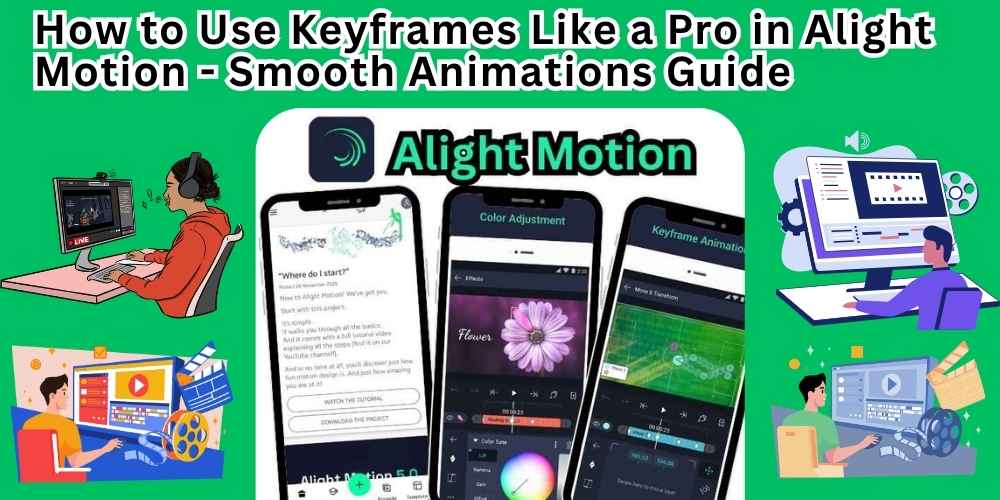
If you are just starting out with Alight Motion, you might think that editing videos is just about cutting clips or adding text. But if you want your videos to actually stand out on TikTok, Instagram, or YouTube, you need to learn how to make things move.
That “magic” is called keyframe animation.
In this guide, we are going to forget the complicated tech talk. I will show you exactly how to use keyframes in Alight Motion so you can create smooth, professional animations that look like a pro made them. Whether you have the official app or are looking for info on the Alight Motion APK, these skills work the same. Let’s dive in.
What Even Is a Keyframe? (The Simple Explanation)
Let me explain it like a flipbook.
Remember drawing a stick figure on the corner of a book? On the first page, the figure is at the bottom. On the last page, it is at the top. When you flip the pages fast, it looks like the figure is flying.
Keyframes are just the first and last pages of that flipbook.
- Keyframe A tells Alight Motion: “The circle is on the left side right now.”
- Keyframe B tells Alight Motion: “Now the circle is on the right side.”
The app is smart. It automatically fills in all the middle steps so the circle slides across the screen smoothly. You don’t have to draw every single frame. You just set the start and the end, and Alight Motion does the hard work for you .
You can use keyframes for almost anything:
- Position: Moving a logo from top to bottom.
- Scale: Making a picture zoom in or shrink.
- Rotation: Spinning a loading icon.
- Opacity: Making text fade in or disappear.
- Color: Changing the color of a shape over time.
Want to know in detail about Alight Motion: Visit this
How to Add Your First Keyframe (Step by Step)
Don’t worry if you have never done this before. Here is the exact path to follow inside the app. I use Alight Motion on my phone, but it is the same on iPad or even if you are using a modified version like Alight Motion APK for extra features.
Step 1: Start a Project
Open the app and tap the “+” (Plus) icon to create a new project. Choose any background or ratio (like 9:16 for TikTok/Reels).
Step 2: Add a Layer
Tap the “+” again and add a Shape or Text. Let’s use a blue circle for practice.
Step 3: Find the “Move & Transform” Menu
Make sure your circle layer is selected (it should be highlighted). Look at the bottom menu and tap “Move & Transform.” This is where the animation magic happens .
Step 4: Set the First Keyframe (The Start)
Look at the top of the screen. You will see your timeline (the ruler where time lives). Move the white line (the playhead) all the way to the left (the beginning).
Next to the words “Position” or “Scale,” you will see a small Diamond icon. Tap it. It turns blue. Congratulations, you just set Keyframe #1.
Step 5: Set the Second Keyframe (The End)
Now, drag that white playhead line to the right (maybe 2 seconds later).
Now, drag your blue circle from the center to the top corner of the screen.
Alight Motion will automatically put a blue diamond there. That is Keyframe #2 .
Step 6: Press Play
Tap the play button at the bottom. See that? Your circle moved from the center to the corner. You just made your first animation!
The Secret to Smooth Animations (The Graph Editor)
Okay, so you moved an object. But does it look a bit… stiff? Robotic? Like a robot sliding on ice?
That is because the default setting in Alight Motion is “Linear.” That means the circle moves at the exact same speed the whole time. It starts fast and stops suddenly. In real life, cars don’t stop instantly. They slow down first.
To make it smooth, we need “Easing.” This is what separates a beginner from a pro.
Here is how to fix it:
- Tap on the keyframe diamond on your timeline.
- Look for the Graph icon (it looks like a squiggly line or a curve).
- Tap it. This opens the Graph Editor .
You will see a straight diagonal line. That is the “robotic” motion. You want to bend this line.
Use the Presets (The Easy Way)
If you don’t want to touch the graph yourself, use these three buttons:
- Ease In: The object starts slow and speeds up (like a car driving away).
- Ease Out: The object moves fast but slows down at the end (like a car parking).
- Ease In-Out: The object starts slow, speeds up in the middle, and slows down at the end. Use this one for 90% of your animations. It looks buttery smooth .
Once you tap “Ease In-Out,” watch your animation again. Suddenly, it doesn’t look cheap anymore. It looks professional and fluid.
Pro Tips to Make You Look Like an Expert
I have been using Alight Motion for a while, and these little tricks save me hours of time.
1. Copy and Paste to Save Time
Do you have a text logo and a shape that need to do the exact same dance move? Do not redo the keyframes.
- Tap the layer that already has the animation.
- Tap the three dots or the layer settings.
- Choose “Copy Layer Style” or just copy the layer.
- Select your new layer and tap “Paste Style.”
- Boom. Your text now moves exactly like your shape did. This is a lifesaver for complex projects .
2. Less is More (Don’t Spam Keyframes)
I see beginners do this all the time. They tap the diamond button every single second because they think more keyframes mean more control. Actually, it usually makes the animation look shaky and glitchy.
Keep it simple. Start with just two keyframes. Only add a third or fourth keyframe if you need the object to change direction .
3. Use Cyclic Motion for Loops
Do you want a loading icon to spin forever? Or a background to bob up and down?
Instead of setting 50 keyframes, set two. Then, in the Curve Editor, look for a preset called “Cyclic.” This tells Alight Motion to repeat the animation over and over and over again. It is perfect for GIFs and backgrounds .
How to Animate to Music (Beat Sync)
This is the coolest trick. You know those edit videos where the text pops exactly when the bass drum hits? That is beat sync.
- Watch the Audio Wave: When you import a song, Alight Motion shows you the waveform (the bumpy lines). The big, tall bumps are the beats .
- Zoom In: Use two fingers to zoom into the timeline so you can see the seconds clearly.
- Tap on the Beat: Drag the playhead to exactly where a big bump is. Tap the diamond to set a keyframe. Move to the next big bump. Change the scale or rotation.
If you time your keyframes to hit on those bumps, your video will look like it is dancing to the music. This is how the pros on Instagram get millions of likes.
Why Use Alight Motion Over Other Apps?
You might be wondering why you should bother with Alight Motion or even look for an Alight Motion APK if you have CapCut or other editors.
The answer is control.
Most apps give you “templates.” You just drop a video in and hope it looks good. Alight Motion gives you the engine. You can animate Vector Graphics (which never get pixelated), you can use the Graph Editor to control speed perfectly, and you can group layers together .
If you want to make Motion Graphics (like the cool animated intros you see on YouTube), Alight Motion is the best tool on a phone. Period.
Common Mistakes to Avoid
Even good editors mess these up. Here is what to watch out for:
- Forgetting to Tap the Diamond: This is the #1 mistake. You move the object, but you forgot to tap the diamond first. The object jumps instantly instead of moving smoothly.
- Moving the Wrong Layer: Make sure you have the correct layer selected (like “Text Layer 1”) before you add keyframes. If you edit the background, you won’t see your text move.
- Ignoring the Graph Editor: I said it before, but linear animation looks cheap. Spend 5 seconds adding “Ease In-Out.” It makes a world of difference.
Final Thoughts
Learning how to use keyframes in Alight Motion is like learning to ride a bike. It feels a little weird at first. Your finger might slip. The graph editor might look scary.
But once you practice moving a shape from Point A to Point B and applying Ease In-Out, you will never go back to static videos.
Whether you downloaded the free version from the store or found an Alight Motion APK to try the premium features, these skills are the foundation of everything. Start small. Make a logo slide in. Make a title fade out.
Soon, you will be making smooth, professional edits that make your friends ask, “Wait, did you do this on a computer?”
And you can smile and say, “Nope. Just my phone.”