
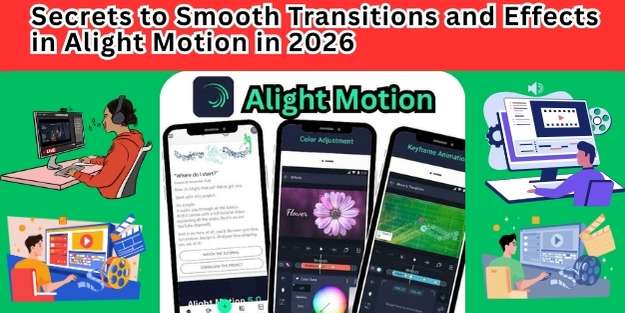
If you love making videos on your phone or tablet, you have probably heard of Alight Motion. In 2026, this app is still one of the best tools for motion graphics, video editing, and visual effects. But here is the truth: many people use Alight Motion every day, but only a few know the real secrets to smooth transitions and effects. You see those cool edits on TikTok, Instagram Reels, and YouTube Shorts. The movement is buttery. The zoom is flawless. The colors blend like magic. And you wonder, “How did they do that?” To Download Alight Motion MOD APK for editing in mobile with pro features , my site is the best place for you.
I will tell you. In this article, I am going to share the hidden tricks, the small settings, and the professional workflows that make your edits look next-level. By the end, you will understand how to create cinematic motion graphics without any lag or choppiness. Let’s dive in.
Why Smooth Transitions Matter More Than Ever in 2026
Before we get into the how, let us talk about the why. In 2026, people’s attention spans are shorter than ever. If your video has a rough cut or a jerky movement, they will scroll away in less than a second.
Smooth transitions keep the viewer glued to the screen. They make your video feel professional, expensive, and satisfying to watch. Whether you are making a fast-paced edit or a slow, emotional story, smooth movements are the backbone of good editing.
Alight Motion has evolved a lot. The 2026 version comes with better keyframe interpolation, faster rendering, and new effects like smart easing and AI-assisted motion blur. But even with all these features, most users still struggle. Why? Because they do not understand the small secrets I am about to share.
Secret 1: Master the Graph Editor Like a Pro
The single biggest secret to smooth transitions is not a fancy effect. It is the Graph Editor. If you ignore this tool, your movements will always look robotic. Let me explain.
When you add a keyframe to a layer (for example, moving a text from left to right), Alight Motion moves it at a constant speed. That is called linear interpolation.
It looks boring and unnatural. Real life does not move like that. Things speed up and slow down gradually.
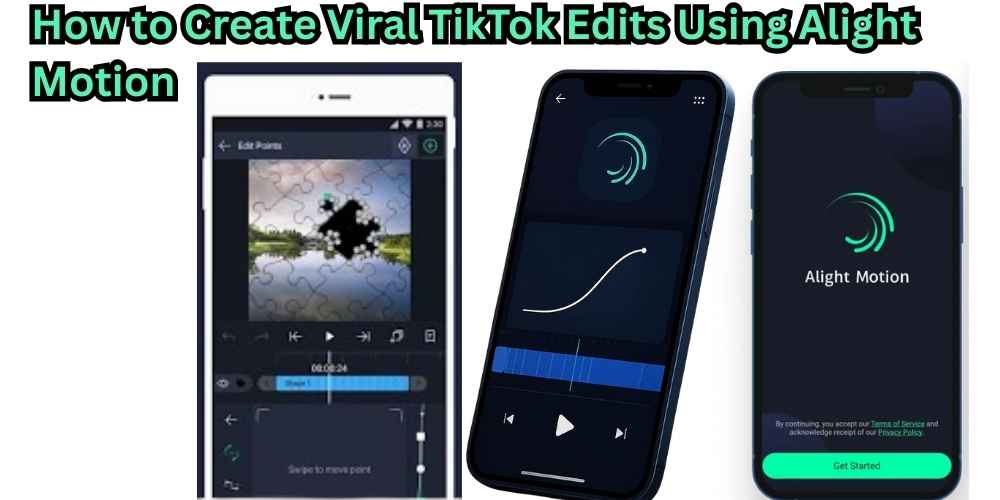
Here is what you do in 2026. After you set your keyframes, tap on the Graph Editor button (it looks like a little curve). You will see a line between your keyframes.
Tap on it and change the curve to an S-shape or an ease-in-out curve. This makes your movement start slow, go fast in the middle, and slow down at the end. That is the secret to butter-smooth motion.
Pro tip for 2026: Use the new Smart Easing feature. It automatically reads your keyframes and suggests the best curve.
Just tap “Auto Smooth” and the app does 80% of the work for you. But always check manually because AI is not perfect yet.
Secret 2: Use Velocity Layers for Organic Movement
This is a newer feature in Alight Motion 2026 that many people overlook. Velocity layers allow you to control the speed of your transition at different points.
Imagine you want a zoom transition that starts very fast, then slows down, then speeds up again at the end. Normal keyframes cannot do that easily. But velocity layers can.
To use this, go to the layer settings, find Motion Blur, and enable Velocity Graph. You will see a new panel where you can draw the speed of your movement with your finger.
Want a sudden stop? Draw a sharp drop. Want a bouncy feel? Draw a small wave at the end. This is a game-changer for dynamic transitions in 2026.
I use velocity layers for whip pans and spin transitions. It makes the movement feel alive, not like a computer animation.
Secret 3: The Power of Parent Layers for Complex Effects
If you have ever tried to move multiple elements together—like a logo, some text, and a shape—you know how frustrating it is to keep them aligned. The secret is parent layers. This is not new, but in 2026, Alight Motion made it easier and more powerful.
Here is how it works. You create an empty group or a null object (just an invisible layer). Then you make all your other layers children of that null object.
Now, when you move, scale, or rotate the parent, everything moves together perfectly. But here is the secret: you can also animate the children separately.
For example, the parent moves left to right, but inside, a child layer is spinning. This creates complex, layered transitions that look very expensive.
In 2026, you can also use 3D parent layers. Yes, Alight Motion now supports basic 3D space.
You can parent a 2D text to a 3D cube. That opens up a whole new world for smooth camera moves and immersive effects.
Secret 4: Motion Blur Is Your Best Friend (But Use It Right)
Let me be honest. Most people turn on motion blur and forget about it. That is a mistake. Motion blur makes fast movements look smooth by adding a blur trail.
But if you use too much, everything looks messy. If you use too little, your movement looks sharp and choppy.
The secret in 2026 is to adjust motion blur per transition. Not every movement needs the same amount. For a slow fade, keep blur low (around 0.5). For a fast zoom or spin, go higher (1.5 to 2.0).
Also, use the new Adaptive Motion Blur setting. It automatically changes the blur amount based on how fast your layer is moving. This is one of the best Alight Motion tips for 2026.
Another hidden trick: Directional motion blur. Instead of blurring in all directions, you can blur only horizontally or vertically.
This is perfect for slide transitions and glitch effects. You find this in the motion blur settings under “Blur Type.”
Secret 5: Keyframe Looping for Infinite Smooth Effects
Do you want a background that moves smoothly forever? Or a loading icon that spins without stopping? The old way was to copy and paste keyframes again and again. That is painful and often creates a small jump at the loop point.
In 2026, Alight Motion introduced Keyframe Looping. You can select a group of keyframes and tap “Loop.”
Then choose between Ping Pong (goes forward then backward) or Repeat (goes forward and jumps back). The best part is the Crossfade Looping option. It blends the end and start of your loop so there is zero visible jump. I use this for seamless background animations and infinite scroll effects.
To make it even smoother, use the Loop Smoothness slider. A value of 100% means mathematically perfect looping. No one will ever see the seam.
Secret 6: The Hidden Easing Presets Nobody Talks About
Alight Motion comes with many easing presets: Linear, Ease In, Ease Out, Ease In Out, Back, Bounce, Elastic. Most people only use Ease In Out. That is fine, but you are missing out.
The secret presets are under the Custom tab. Here you will find Expo, Circ, Quad, and Cubic. These are mathematical easing functions used by professional animators.
Expo easing is very dramatic. It starts super slow and ends super fast. Great for big impact transitions. Circ easing feels more natural for circular movements like spins. Quad and Cubic are gentler and good for most everyday transitions.
In 2026, you can also stack easings. That means you apply an Ease Out first, then an Elastic bounce at the end.
This creates a movement that stops but then wiggles slightly. Very modern and trendy for aesthetic edits.
Secret 7: Use Adjustment Layers for Non-Destructive Transitions
Here is a mistake beginners make. They apply a transition effect (like a blur or a color flash) directly on a video clip. Then later they want to change it, but they have to redo everything. The secret is adjustment layers.
An adjustment layer is an empty layer that affects everything below it. You can add a Gaussian Blur effect to the adjustment layer and animate its strength from 0 to 100.
As it increases, everything underneath gets blurry. This creates a beautiful blur transition without damaging your original clips.
In 2026, adjustment layers can also have masks and blend modes. You can create a transition where a shape wipes across the screen and inside that shape, the colors change.
This is how YouTubers make those smooth color grade transitions. Trust me, once you start using adjustment layers, you will never go back.
Secret 8: The 60 FPS Trick for Ultra Smooth Edits
Alight Motion lets you set your project frame rate anywhere from 12 to 120 FPS. Many people choose 30 or 60 FPS. But here is the secret for 2026: always edit in 60 FPS even if you will export in 30 FPS.
Why? Because 60 FPS gives you twice as many keyframe positions. That means your easing curves can be much smoother. There is less jumping between frames.
Then, when you export, use the new Smart Frame Blending option. It converts your 60 FPS edit to 30 FPS by blending the frames intelligently. The result is a video that looks smoother than one edited natively in 30 FPS. This is a pro-level trick that very few people talk about.
But be careful. 60 FPS projects require more processing power. If your phone is old, you might experience lag. In that case, use 30 FPS but turn on Preview Smoothing in the playback settings.
Secret 9: Group Transitions with Shape Wipes
A shape wipe is when a circle, a square, or a custom shape reveals the next scene. It is very popular in 2026 for urban edits and music videos. The secret to making it smooth is not just the shape itself. It is the feathering and the overlap.
First, create a shape (like a circle) on an adjustment layer. Add a Mask and choose the shape. Then animate the mask scale from 0 to 200%. That makes the circle grow and reveal the layer below.
But if you stop there, it looks harsh. So go to mask settings and increase Feather to around 15-20%. This softens the edge of the wipe.
Now for the secret: add a 0.2 second overlap. That means your next scene starts appearing slightly before the shape wipe finishes.
To do this, move the second video clip one or two frames earlier on the timeline. This tiny overlap removes any empty gap and makes the wipe feel silky smooth.
In 2026, Alight Motion also added animated shape wipes where the shape itself changes form during the transition.
A circle turns into a star turns into a heart. You can do this by keyframing the mask path properties. It is a bit advanced, but very rewarding.
Secret 10: Reduce Rendering Lag with Proxy Clips
Nothing ruins your creative flow like lag. You try to play your transition and the app stutters. You cannot see if it is smooth because the preview is skipping frames. The secret is proxy clips.
A proxy clip is a low-resolution copy of your video. You tell Alight Motion to use the proxy while you edit, then switch back to the original when you export.
In 2026, this is easier than ever. Long press on any video clip, tap Create Proxy, and choose 480p. The app makes a smaller, lighter version instantly.
Now your timeline plays butter smooth, even with many effects and transitions. Once you finish editing, go to settings and tap Use Original Media before exporting. Your final video will be full quality. This is a lifesaver for complex transitions on older devices.
Secret 11: Sound Sync for Visual Smoothness
Here is something most tutorials ignore. A transition does not only need to look smooth. It needs to feel smooth. And feeling comes from sound. If your visual movement does not match the beat or the sound effect, it will feel off, even if the keyframes are perfect.
In 2026, Alight Motion has a Beat Detection tool. Import your audio, tap the music note icon, and the app marks every beat on the timeline.
Now place your transition keyframes exactly on those beat markers. Your zoom, your spin, your slide will hit right when the drum hits. That creates a deep sense of smoothness in the viewer’s brain.
For even better results, add a subtle whoosh sound effect (you can find free ones online) exactly on the transition point.
Align the peak of the whoosh with the peak of your motion. This is how pro editors make their cinematic transitions feel expensive.
Secret 12: Use the New 2026 AI Motion Assistant
This is brand new for 2026. Alight Motion added an AI Motion Assistant. You can find it as a small wand icon next to the keyframe button.
Here is what it does: you draw a rough path with your finger, and the AI creates a smooth, eased motion path automatically.
You can also type a command like “zoom in fast then bounce” and it generates the keyframes for you.
But here is the secret: do not accept the AI result as final. The AI is good but not perfect. Use it to get 80% of the way there, then fine-tune the graph editor yourself.
The AI is amazing for quick smooth transitions when you are in a hurry, but for professional work, you still need human touch.
Another AI feature in 2026 is Smart Fill. If you have a gap between two keyframes, the AI can fill it with smooth movement based on your previous keyframes. This saves hours of manual work.
Secret 13: Blend Modes for Seamless Effect Overlays
Sometimes a transition looks harsh because the colors clash. For example, you have a bright white flash transition on a dark video. It feels like a slap in the face. The secret is blend modes.
When you add an effect layer (like a color solid or a gradient), change its blend mode from Normal to Overlay, Soft Light, or Screen.
These modes mix the effect with the layers below instead of just covering them. The result is a smooth color transition that feels integrated, not pasted on top.
In 2026, Alight Motion has a Live Blend Preview. As you scroll through blend modes, you see the result in real time. For smooth transitions, I recommend Add mode for light leaks, Multiply for dark fades, and Soft Light for gentle color shifts.
Secret 14: The Art of Offset Keyframes
Most people put all their keyframes at the exact same time. For example, at 1 second, scale starts changing, rotation starts changing, and position starts changing. That is okay, but it is not smooth. It is predictable.
The secret is to offset your keyframes. Make the position change start 0.1 seconds before the scale change.
And make the rotation start 0.1 seconds after the scale. This staggered timing creates a more organic, flowing movement. It feels less like a robot and more like a dancer.
In 2026, you can use the Keyframe Offset Tool to select multiple keyframes and shift them all by a set number of frames with one tap.
Experiment with offsets between 2 to 5 frames for most smooth compound transitions.
Secret 15: Export Settings That Preserve Smoothness
You did all the hard work. Your transition is perfect in the preview. But when you export and upload to social media, it looks choppy. Why? Because your export settings are wrong.
Here are the best export settings for smooth transitions in 2026:
- Resolution: 1080×1920 for vertical video (Reels, Shorts, TikTok)
- Frame Rate: Same as your project (preferably 30 or 60 FPS)
- Bitrate: Set to “High” or custom 15-20 Mbps. Lower bitrates cause compression artifacts that ruin smooth gradients.
- Codec: H.265 (HEVC) for smaller file size without quality loss. H.264 for maximum compatibility.
- Check “Preserve Motion Blur” – this is easy to miss but very important.
Also, do not upload directly from Alight Motion to social media. First, save to your device gallery. Then open Instagram or TikTok and upload from there. Direct sharing sometimes recompresses the video and ruins your smooth motion.
Bonus Secret: Practice with Daily Transition Challenges
All these secrets mean nothing if you do not practice. In 2026, the Alight Motion community has daily transition challenges on Discord and Reddit.
Every day, people post a raw clip and everyone edits it using only smooth transitions. You learn more in one week of challenges than in months of random tutorials.
Start with simple transitions: push, slide, fade, zoom, blur. Then move to advanced: spin, stretch, morph, warp, 3D flip. Time yourself. Try to make each transition in under 2 minutes. Speed comes from muscle memory.
Final Words: Smooth Transitions Are a Feeling, Not a Formula
I have given you 15 secrets and one bonus. You now know more than 90% of Alight Motion users. But remember this: smooth transitions are not just about keyframes and easing curves. They are about feeling.
Watch your edit with fresh eyes. Does the movement feel good? Does it match the music? Does it tell a story? If yes, you have succeeded.
Alight Motion in 2026 is a powerful beast. But you are the one in control. Start with one secret from this article. Master it.
Then add another. In a few weeks, you will be making edits that make people say, “Wow, how did you do that?” And you will smile, because now you know the secrets.
Now go open Alight Motion. Create a new project. Add a clip. And make the smoothest transition of your life. You got this.